After recently upgrading an Optimizely solution from CMS 11 to CMS 12, everything initially seemed to work fine. The site started without errors, and the editor interface looked normal.
However, once development of new features resumed, it quickly became clear that something was wrong. Adding a property to a page type would do nothing. Nothing new would appear in edit mode, nor in the admin interface; the changes were ignored.
Debugging the issue
While investigating the problem, I noticed the following warning repeatedly appearing in the Visual Studio debug output:
EPiServer.DataAbstraction.RuntimeModel.Internal.ContentTypeModelRegister: Warning: Changes in the model were ignored because its version(0.0.0.0) is lower than version in the database(1.0).
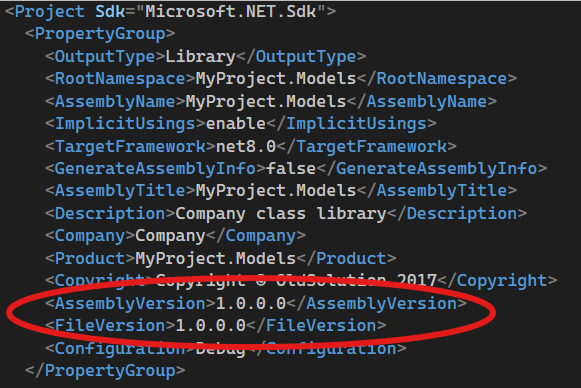
This was appearing in the output multiple times. I knew that in my project file, I had the properties AssemblyVersion and FileVersion set to 1.0.0.0, so this was something I understood little of.
Finding the solution
Fortunately, Optimizely has great developers all around the world, and a forum where most strange behaviour is discussed. In this thread, I've found the solution to the problem:
"Removing <AssemblyVersion> and <FileVersion> (if they exist) from csproj and adding <GenerateAssemblyInfo>true</GenerateAssemblyInfo> solved my problem."
<GenerateAssemblyInfo>true</GenerateAssemblyInfo>
After applying this change and rebuilding the project, everything started working as expected. New properties were registered correctly, and Optimizely picked up model changes again.
Why does this happen?
The root cause appears to be related to how assembly metadata is generated in modern .NET versions.
When migrating from .NET Framework to .NET 6+ (as part of upgrading to CMS 12), assembly attributes may be handled differently. If they are misconfigured, Optimizely may fail to detect the correct assembly version and default to 0.0.0.0.
This post from Microsoft gives a hint on what I should try on my next .NET Framework upgrade.
When porting code from .NET Framework to .NET 6 or later, do one of the following before running the .NET Upgrade Assistant:
Disable the generation of the temporary code file that contains the assembly info attributes by settingGenerateAssemblyInfotofalsein your project file. This enables you to keep your AssemblyInfo file.
Migrate the settings in the AssemblyInfo file to the project file, and then delete the AssemblyInfo file.